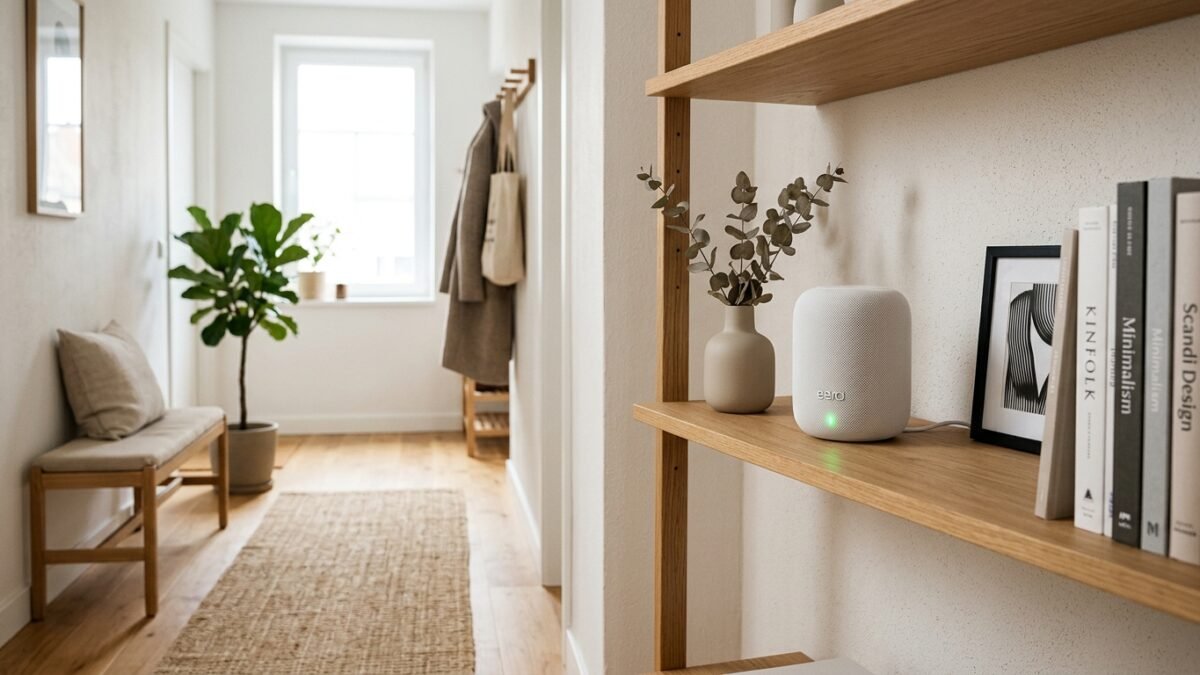
You pay for a 500 Mbps fiber or cable connection, but sitting at your desk two rooms away, your laptop barely streams high-definition video. The problem is almost never your internet provider; it is the physical layout of your home Wi-Fi signal.
Wi-Fi signals are high-frequency electromagnetic radio waves. Understanding basic radio wave physics allows you to dramatically improve your network reliability without spending hundreds of dollars on unnecessary new gear.
1. The Geometry of Router Placement
Most people treat their Wi-Fi router like an eyesore, tucking it inside a wooden entertainment center, placing it behind a heavy television, or shoving it in a corner under a desk near the floor.
Wi-Fi antennas radiate signal downward and outward in a donut-shaped toroidal pattern. Placing a router near the floor wastes half the signal firing directly into floorboards and foundation concrete.
- Elevate: Place the router on a shelf or tabletop at least 3 to 5 feet off the ground.
- Centralize: Wi-Fi signals dissipate proportionally to the square of the distance (the inverse-square law). A router positioned at the far perimeter of your home loses over 75% of its effective signal before reaching the opposite wing.
2. 2.4 GHz vs. 5 GHz: Choose the Right Highway
Modern routers broadcast across at least two distinct frequency bands:
- 2.4 GHz: Long wavelength. Excellent penetration through walls and obstacles, but lower top speeds and high congestion from neighboring routers, baby monitors, and microwave ovens.
- 5 GHz / 6 GHz: Short wavelength. Tremendous speed and bandwidth, but significantly reduced range through drywall and masonry.
Reserve the 5 GHz band for high-demand devices (work computers, gaming consoles, smart TVs) located within line-of-sight or one room away. Keep low-bandwidth smart home accessories (smart plugs, thermostats) on 2.4 GHz.
3. When to Upgrade to Mesh with Backhaul
If your home is larger than 2,000 square feet or contains brick, plaster, or concrete walls, a single router will struggle. A mesh system with two or three nodes creates an integrated wireless blanket under a single network name (SSID).
For the ultimate connection, use Ethernet backhaul: run an Ethernet cable between the main router and the satellite node. This frees up 100% of the wireless airwaves for your devices, delivering wire-speed performance across your entire living space.